Cafans Journal
Stories & FindsUSFans Spreadsheet Guide: The Complete CAFANS English Reference (2025)
USFans Spreadsheet Guide: Your Complete English CAFANS Reference
If you have been searching for a reliable usfans spreadsheet, this CAFANS English guide walks you through everything you need to know — from reading the sheet to placing your first order. The usfans guide below is written for English-speaking buyers who want a clear, no-nonsense overview of how the platform works, how product links are organised, and how to shop smartly.
What Is the USFans Spreadsheet?
The usfans spreadsheet is a structured catalogue that lists available products, their reference codes, prices, sizes, colours and direct usfans product links. Instead of browsing dozens of scattered pages, buyers open a single sheet and filter rows by category, price range or batch. Think of it as a master index: each row corresponds to one item, and each item links to a product page where you can inspect photos, measurements and available variants.
Because the sheet is regularly updated, it doubles as a live inventory snapshot. New arrivals are appended, sold-out rows are marked, and price changes are reflected quickly. This is why the usfans spreadsheet guide matters: a sheet is only useful if you know how to read its columns and verify information before ordering.
How to Read the Spreadsheet Columns
A typical row in the usfans spreadsheet contains several standard fields. Understanding them saves time and prevents mistakes.
- Item code — the unique identifier you will reference in chat or checkout.
- Title — a short English description of the item.
- Category — clothing, footwear, accessories, bags, electronics and similar groupings.
- Size range — available sizes, sometimes with a note on fit (runs small, true to size).
- Colour options — colourways currently in stock.
- Price — listed in the sheet's reference currency; always confirm at the product page.
- Product link — the direct usfans product links that open the item page.
- Status — in stock, low stock, restocking or sold out.
- Batch or version — relevant for items produced in multiple runs.
- Notes — quality remarks, sizing warnings or shipping hints.
Always cross-check the sheet against the product page. The sheet is a map, not the destination: final pricing, stock and shipping estimates appear on the linked page.
Step-by-Step: Using the USFans Shopping Guide
Follow this usfans shopping guide sequence for a smooth first order.
- Open the sheet. Load the usfans spreadsheet in your browser or spreadsheet app so filters work properly.
- Filter by category. Narrow rows to the product type you want before scrolling.
- Shortlist items. Copy item codes and open the usfans product links in separate tabs.
- Verify details. Check size charts, material notes and real photos on each product page.
- Confirm availability. Ask support about stock if the status column is unclear.
- Build your order. Add selected items to your cart or submit the codes through the order channel.
- Review shipping. Compare available lines, estimated transit times and weight-based costs.
- Pay and track. Complete payment, then monitor the tracking number until delivery.
This workflow keeps you organised: the sheet gives you the shortlist, the product pages give you the facts, and the order channel confirms the transaction.
Practical Tips for Spreadsheet Shopping
Experienced buyers treat the usfans spreadsheet as a working document. A few habits make a big difference.
Sort before you scroll. Sorting by price or category reveals options you would otherwise miss. Use the search function. Keyword search within the sheet is faster than manual browsing. Save a personal copy. Duplicate the sheet and highlight rows you like; you can return later without losing your place. Check update dates. Compare the sheet's last-modified note with the product page — stale rows cause most order errors. Read the notes column. Sizing warnings and batch remarks are usually accurate and save return hassle. Compare similar items. Two rows may look identical but differ in version or material; the product page photos settle it.
Finally, keep expectations realistic: stock moves quickly, and popular sizes sell out first. If a row is marked low stock, decide promptly.
Common Mistakes to Avoid
Most problems stem from skipping verification. Do not assume the sheet price includes shipping — it usually does not. Do not rely on the sheet alone for sizing; open the product page chart. Do not share raw links outside the intended channels, and do not confuse similar item codes. And never ignore the status column: ordering a sold-out row only delays your haul.
FAQ
Is the spreadsheet free to view? Yes, viewing and filtering the sheet costs nothing; you pay only for items you order.
How often is it updated? Updates are frequent, but always confirm on the product page before paying.
Can I order directly from the sheet? No — the sheet provides codes and links; ordering happens through the product page or order channel.
What if an item is out of stock? Check the status column and ask support about restock timing before substituting.
Final Thoughts
The usfans spreadsheet is the fastest way to browse a large catalogue without chaos. Combined with the usfans guide steps above, direct usfans product links, and a disciplined usfans shopping guide routine, English-speaking buyers can shortlist, verify and order with confidence. Bookmark this usfans spreadsheet guide, keep your shortlist updated, and always let the product page have the final word.
Editor's selection
Popular Products
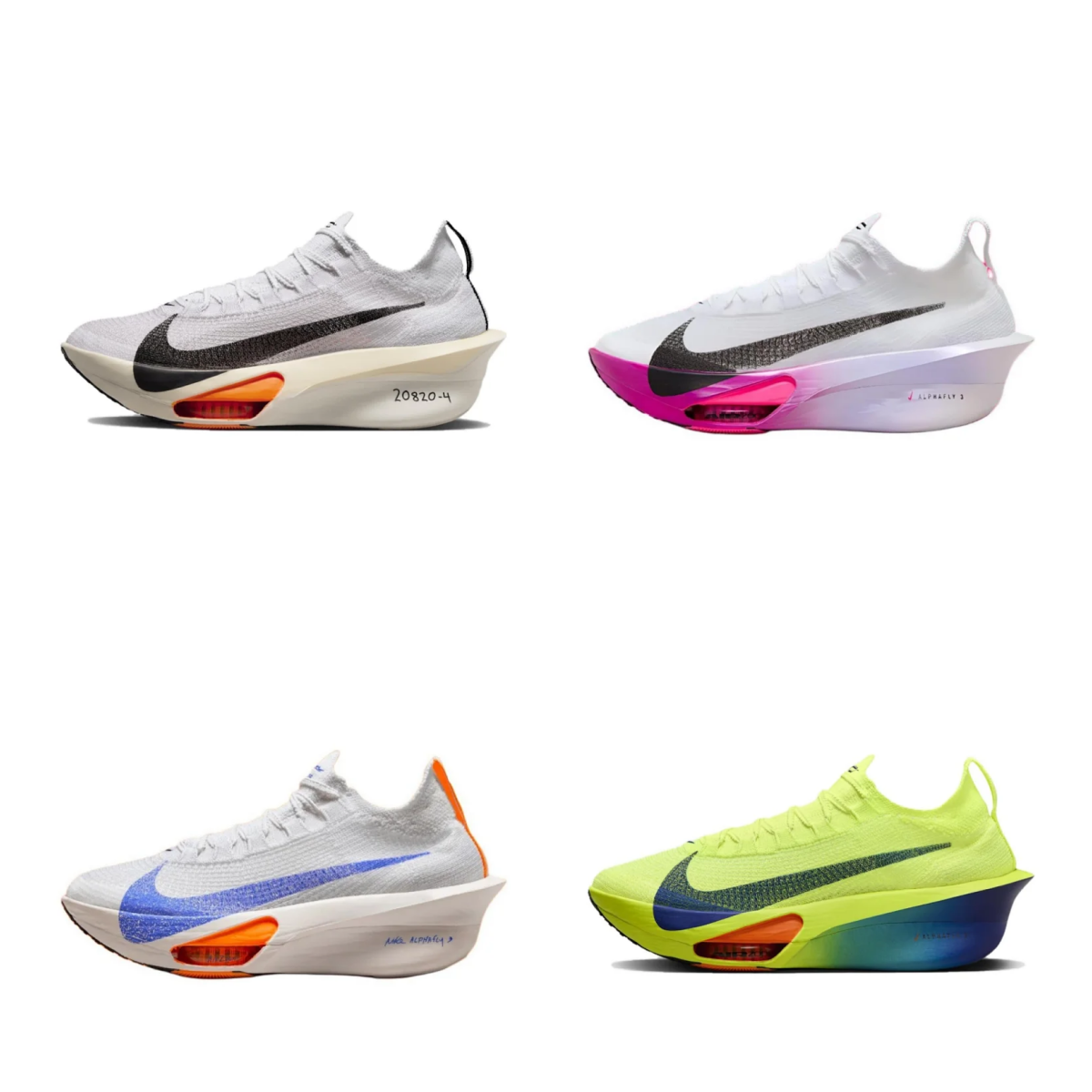
Shoes Ph076 Breathable Running Shoes | CSSBuy spreadsheet | LoongBuy spreadsheet - 136150
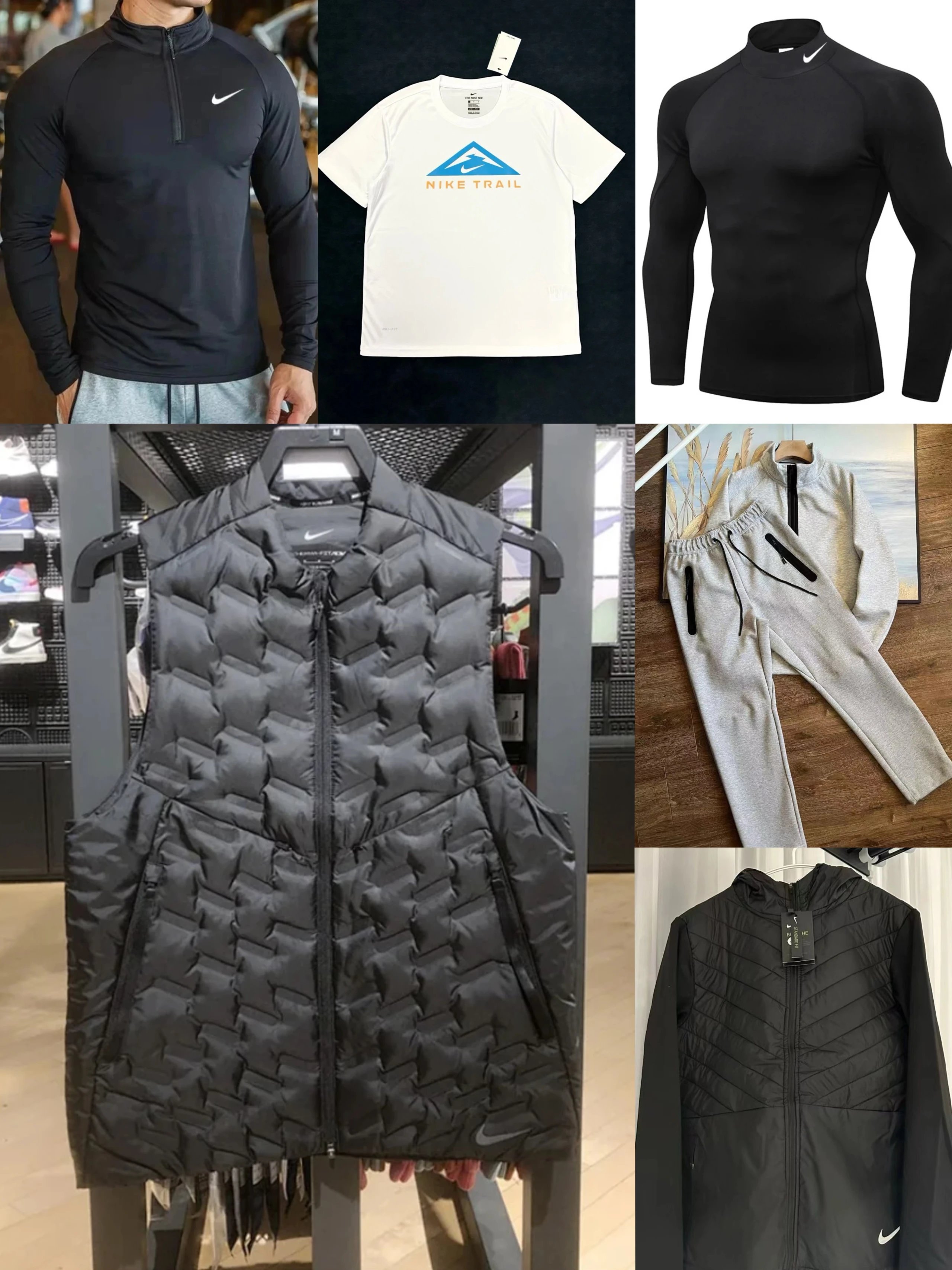
Ni Vests, T-Shirt and Clothing Sets 1000 | JoyaGoo spreadsheet | Sugargoo spreadsheet - 141084
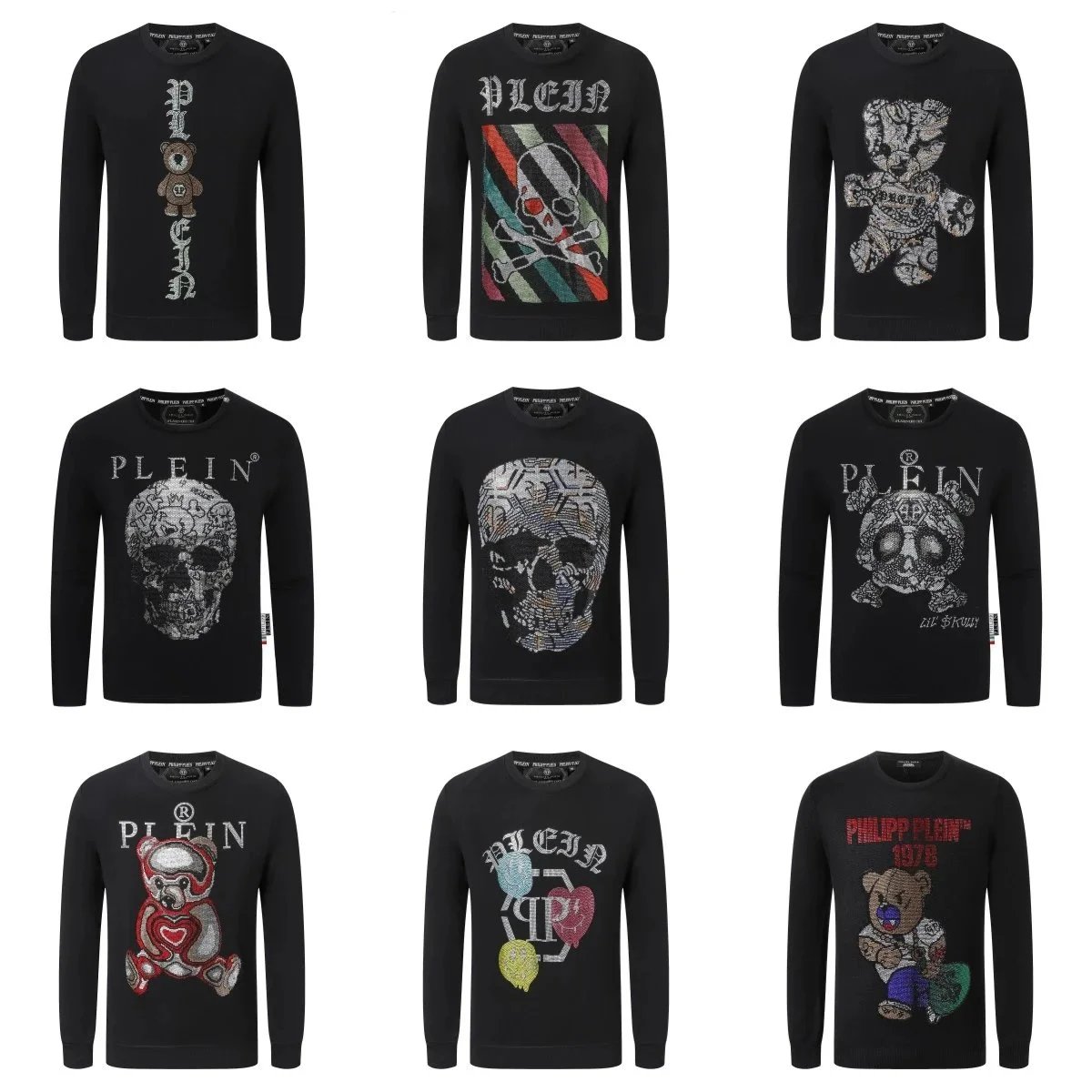
Outfit Set FL01-005ph Spring and Autumn Casual Clothing | Sugargoo spreadsheet | GTBuy spreadsheet - 136271
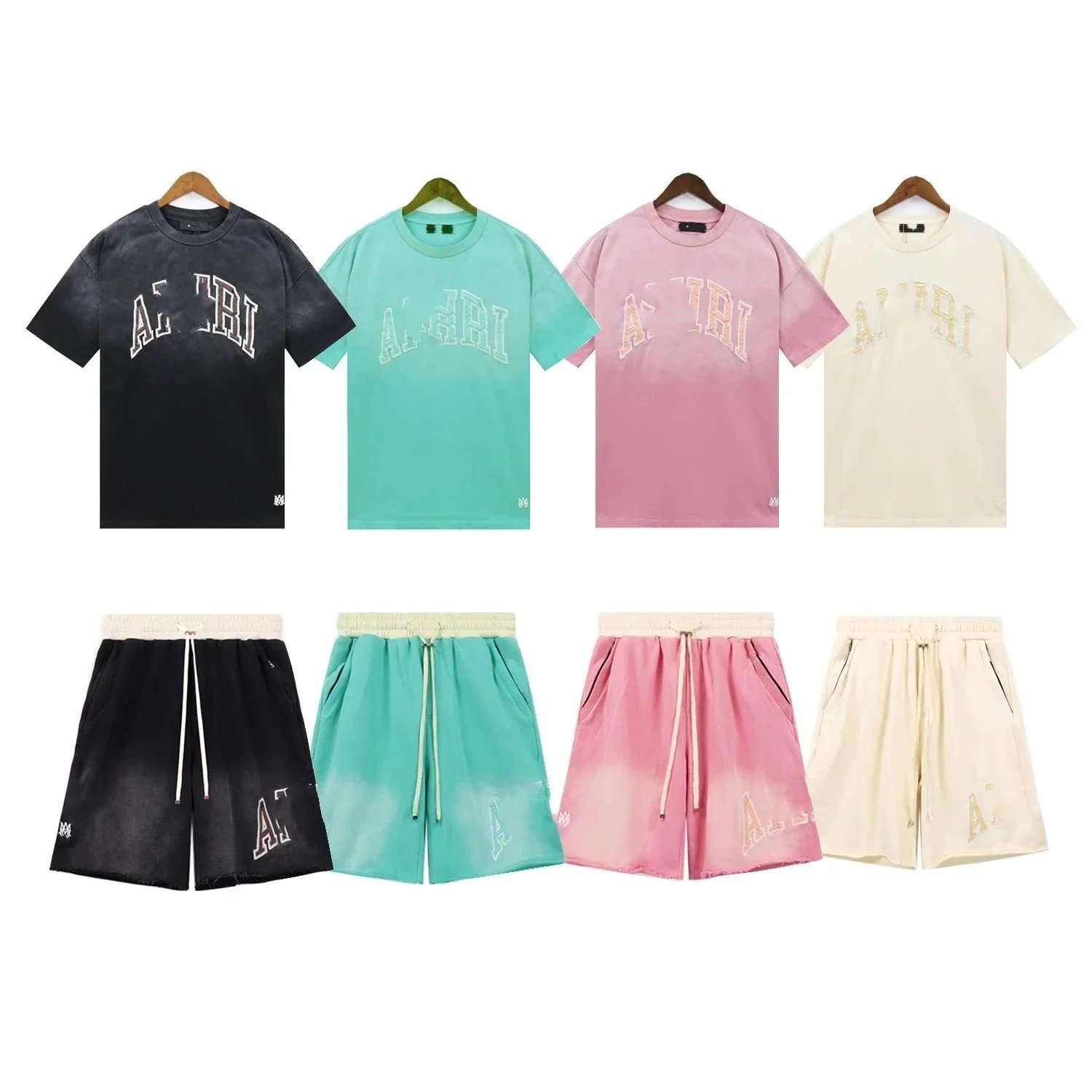
Clothing Set 1 | Oopbuy spreadsheet | BBDBuy spreadsheet | CSSBuy spreadsheet - 136873
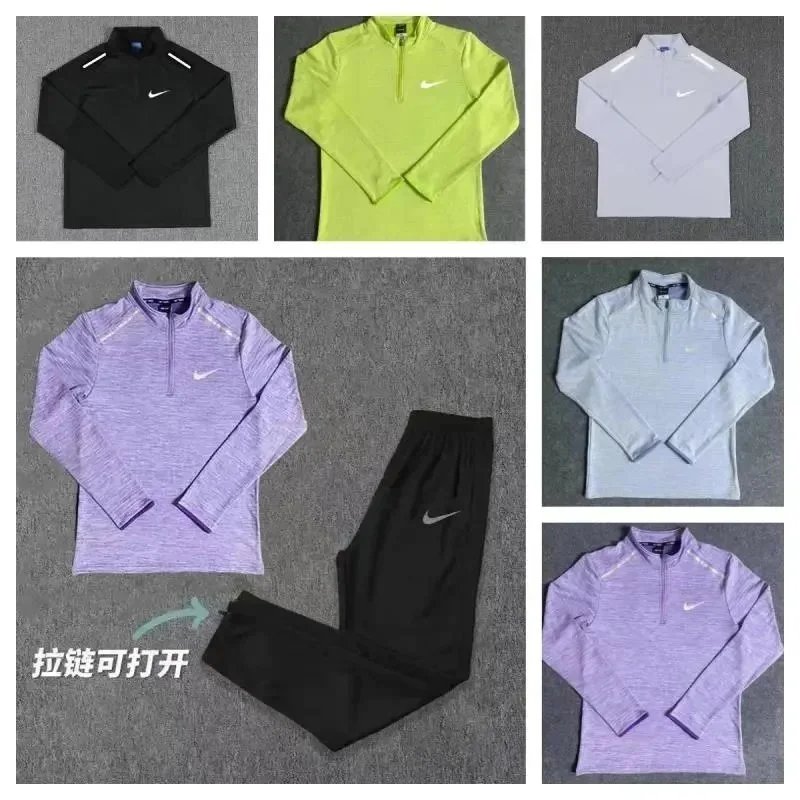
Outfit Set MX16 Clothing Set | Hipobuy spreadsheet | Fishgoo spreadsheet - 137693
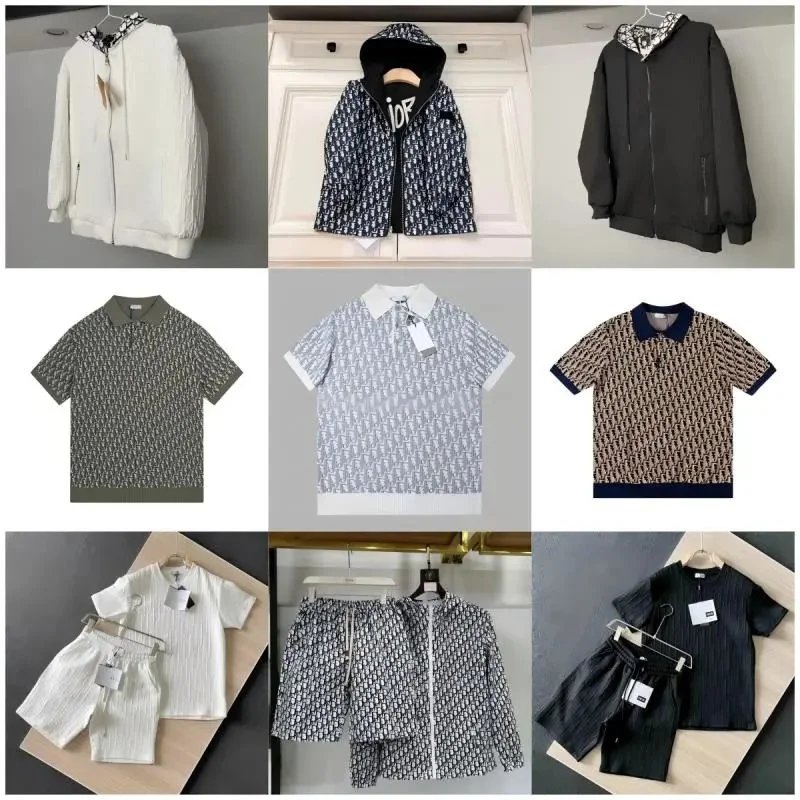
D All-Over Print Clothing Set | UIDBuy spreadsheet | Kakobuy spreadsheet | Hipobuy spreadsheet - 136221
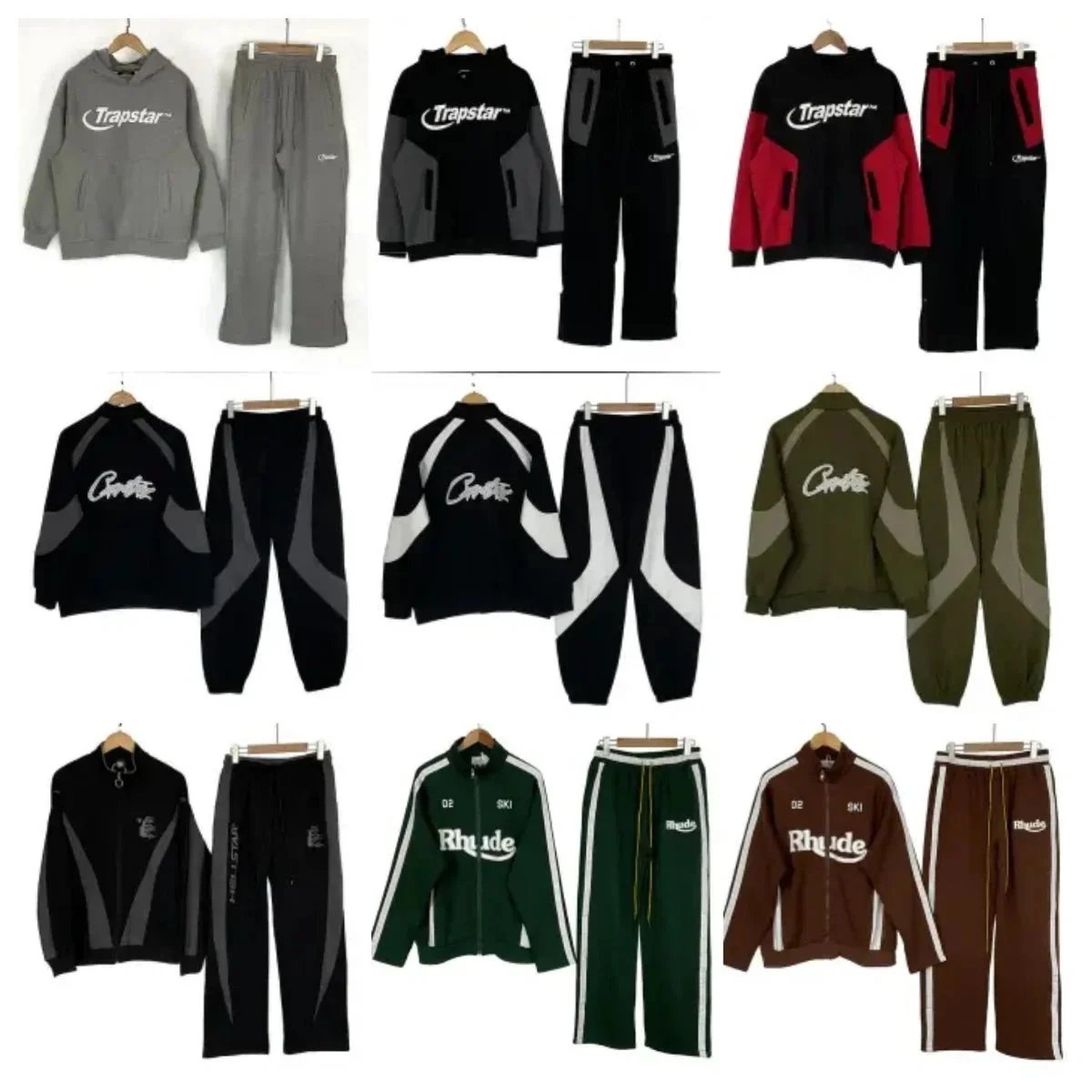
Outfit Set L-001 Casual Hip-Hop Clothing Set | GTBuy spreadsheet | Hubbuycn spreadsheet - 136248