Cafans Journal
Stories & FindsThe CAFANS Guide to Spreadsheets: A Complete Workflow for Smart Shopping and Product Comparison
If you have ever tried to shop for a big purchase without a plan, you know the chaos: dozens of browser tabs, screenshots scattered across your phone, and a nagging feeling that you forgot to compare one crucial option. The CAFANS method fixes that. CAFANS is a simple framework for building a spreadsheet that turns shopping into a structured, repeatable process. This guide walks you through the full workflow, from setting up your first sheet to running a professional-grade product comparison spreadsheet, and explains how an agent shopping spreadsheet can keep every deal, link, and note in one place.
What Is CAFANS?
CAFANS stands for Collect, Assess, Filter, Analyze, Negotiate, and Select. Each stage maps to a set of columns and views inside your shopping spreadsheet. The point is not to complicate buying; it is to make every decision traceable. When you follow a spreadsheet guide like this one, you stop relying on memory and start relying on data.
Step 1: Collect (Build Your Master List)
Start with a single tab called Master List. Every item you are considering goes here first, whether it is a laptop, a coffee grinder, a standing desk, or a pair of running shoes. Use these columns:
- Item ID – a short code such as LAP-001 for easy reference.
- Product name and category.
- Retailer and product URL.
- List price, sale price, and currency.
- Date collected so you know when a price was valid.
- Notes for color, size, warranty, or availability.
This is the backbone of your spreadsheet. Keep one row per product variant; do not merge colors or sizes into a single line, or your comparison will collapse later.
Step 2: Assess (Define What Matters)
Before you compare anything, list your criteria in a second tab called Criteria. Typical columns include price, shipping cost, delivery time, return window, warranty length, material, dimensions, weight, energy rating, customer rating, and review count. Assign each criterion a weight from 1 to 5 so your final score reflects real priorities rather than gut feeling.
Use data validation to create drop-down lists for categories and status labels such as shortlisted, rejected, or purchased. Add conditional formatting to highlight prices above your budget in red and ratings below four stars in amber. These small touches make the sheet readable at a glance.
Step 3: Filter (Narrow the Field)
Now open the Master List and turn on filters. Hide anything outside your budget, anything out of stock, and anything from a retailer you do not trust. Use a helper column called Shortlist with a simple IF formula to mark rows that pass your rules. This is where the product comparison spreadsheet begins to earn its keep: instead of juggling twenty tabs, you are looking at five realistic candidates.
If you are buying for a household or a team, add a stakeholder column and a priority column so multiple people can vote. A shared shopping spreadsheet in the cloud keeps everyone aligned and prevents duplicate purchases.
Step 4: Analyze (Score and Compare)
Create a third tab called Comparison. Copy your shortlisted products into columns and list criteria down the rows. Use a weighted score formula: multiply each rating by its weight, sum the results, and divide by the total weight. Add VLOOKUP or XLOOKUP to pull prices from the Master List automatically, and a pivot table to summarize average price by category.
Track total cost of ownership, not just sticker price. Include tax, shipping, accessories, subscription fees, and replacement parts. A sparkline chart or a small bar chart can show price trends if you log prices over several weeks. Freeze the header row, add cell comments for assumptions, and protect formulas so nobody overwrites them by accident.
Step 5: Negotiate (Track Offers and Agents)
Many buyers use an agent shopping spreadsheet when working with buying agents, personal shoppers, or overseas purchasing services. Add columns for agent name, commission rate, service fee, quote date, quote expiry, and payment terms. Record each negotiation round in its own row so you can see how the price moved.
Keep a coupon column and a promo code column, plus a price alert note for items you are watching. If you are buying from abroad, add exchange rate, import duty, and customs fee fields. A linked budget tracker tab will warn you when committed spending approaches your limit.
Step 6: Select (Decide and Document)
The final tab is Decision Log. Record the chosen item, the runner-up, the reason for the choice, and the date. Add order number, tracking number, expected delivery, and return deadline. After delivery, log the actual condition and whether the item matched the listing. This closes the loop and gives you a reusable template for next time.
Practical Tips for a Better Spreadsheet
- Use consistent units and a single currency column with a separate conversion field.
- Colour-code status cells and add a legend on a Read Me tab.
- Back up the file weekly and keep a version history.
- Use named ranges for key tables so formulas stay readable.
- Avoid hard-coding numbers inside formulas; reference cells instead.
- Share view-only links with family members and edit access only with trusted collaborators.
Conclusion
The CAFANS method works because it forces discipline without sacrificing flexibility. A well-built spreadsheet becomes your shopping spreadsheet, your product comparison spreadsheet, and your agent shopping spreadsheet all at once. Follow this spreadsheet guide, and every purchase you make will be documented, comparable, and defensible.
Editor's selection
Popular Products
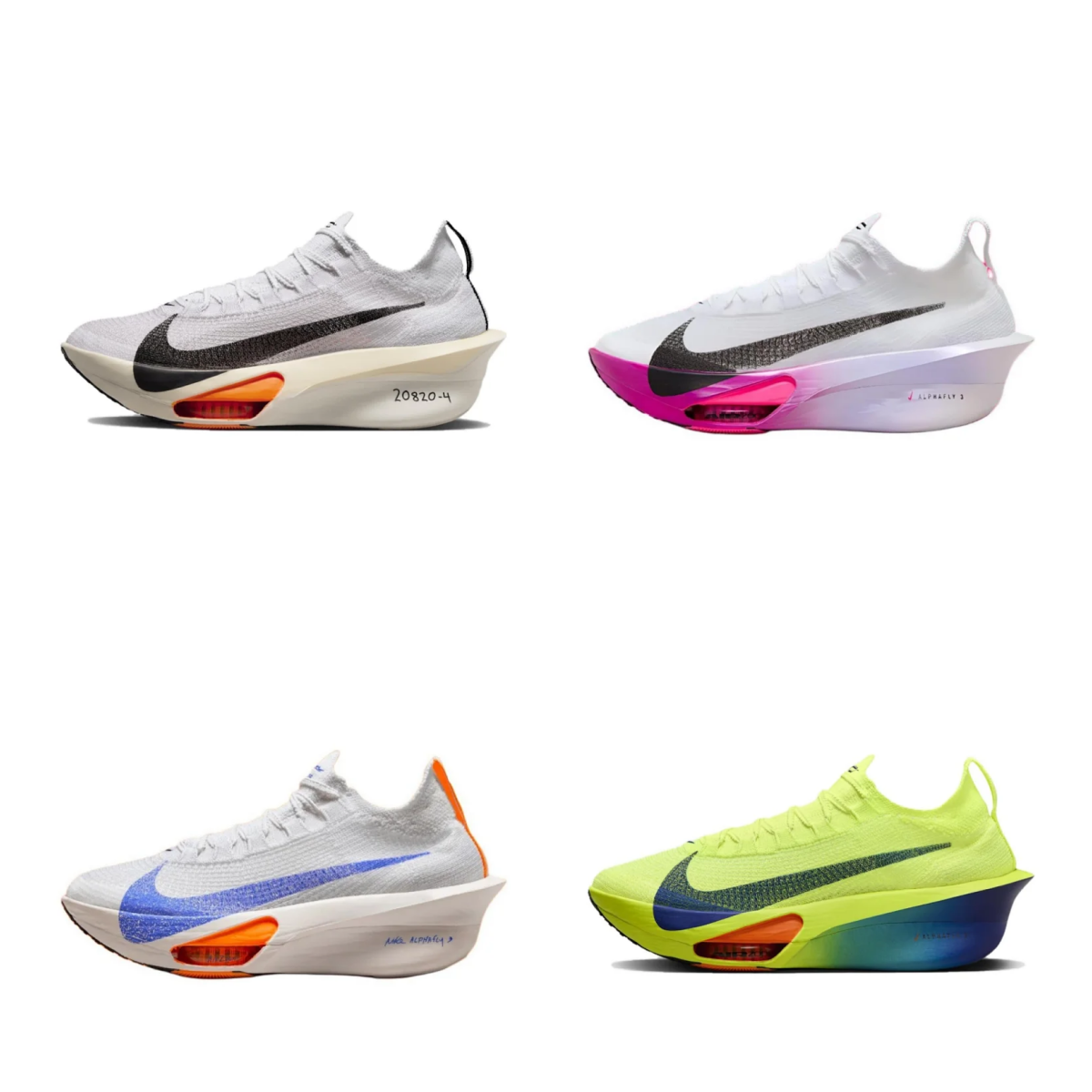
Shoes Ph076 Breathable Running Shoes | CSSBuy spreadsheet | LoongBuy spreadsheet - 136150

PH Running Shoes | MyCNBox spreadsheet | Hubbuycn spreadsheet - 136149
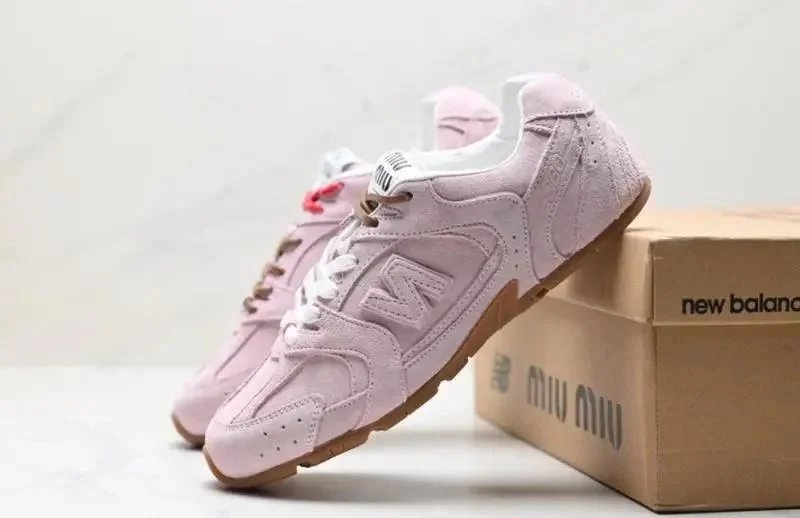
Shoes H25 Retro Low-Top Running Shoes | UIDBuy spreadsheet | BBDBuy spreadsheet - 135631
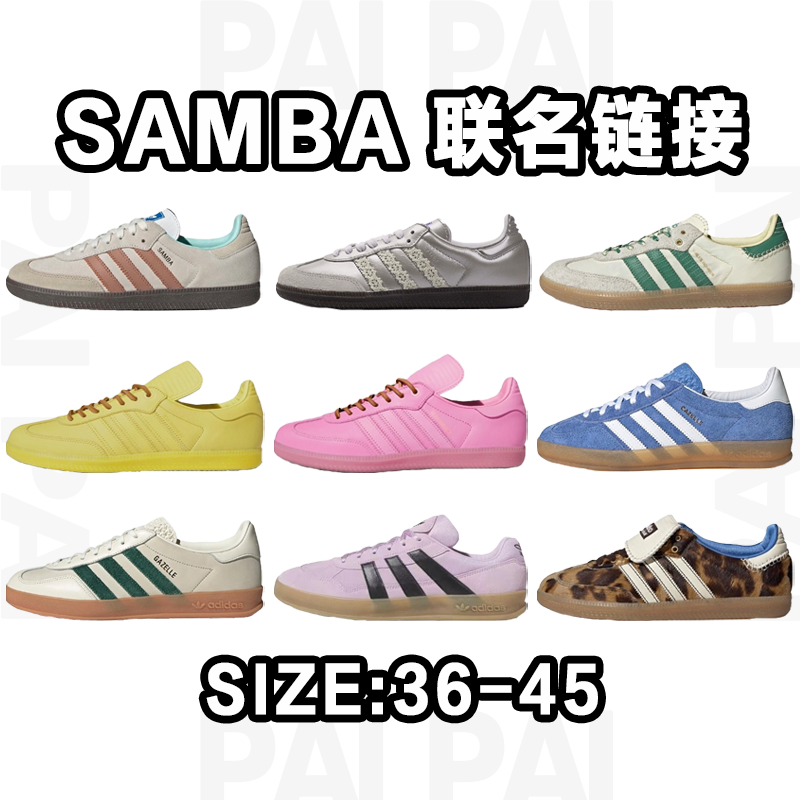
Unisex Running Shoes | Wheebuy spreadsheet | Hipobuy spreadsheet | GTBuy spreadsheet - 135538
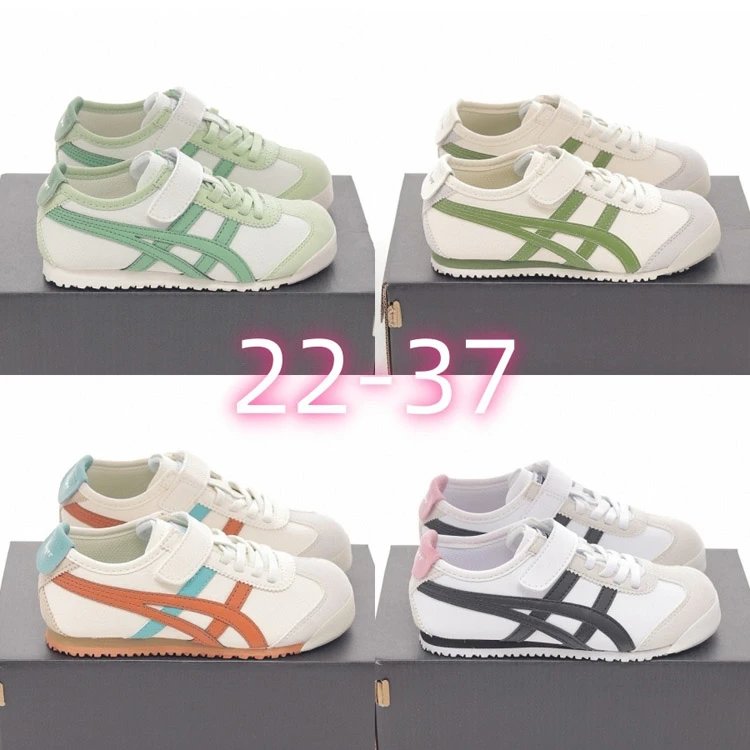
GZH 4115 Children's Low-Top Running Shoes | CNShopper spreadsheet | Wheebuy spreadsheet - 135738

Shoes 70W Unisex Classic Running Shoes | Hubbuycn spreadsheet | CSSBuy spreadsheet - 135408
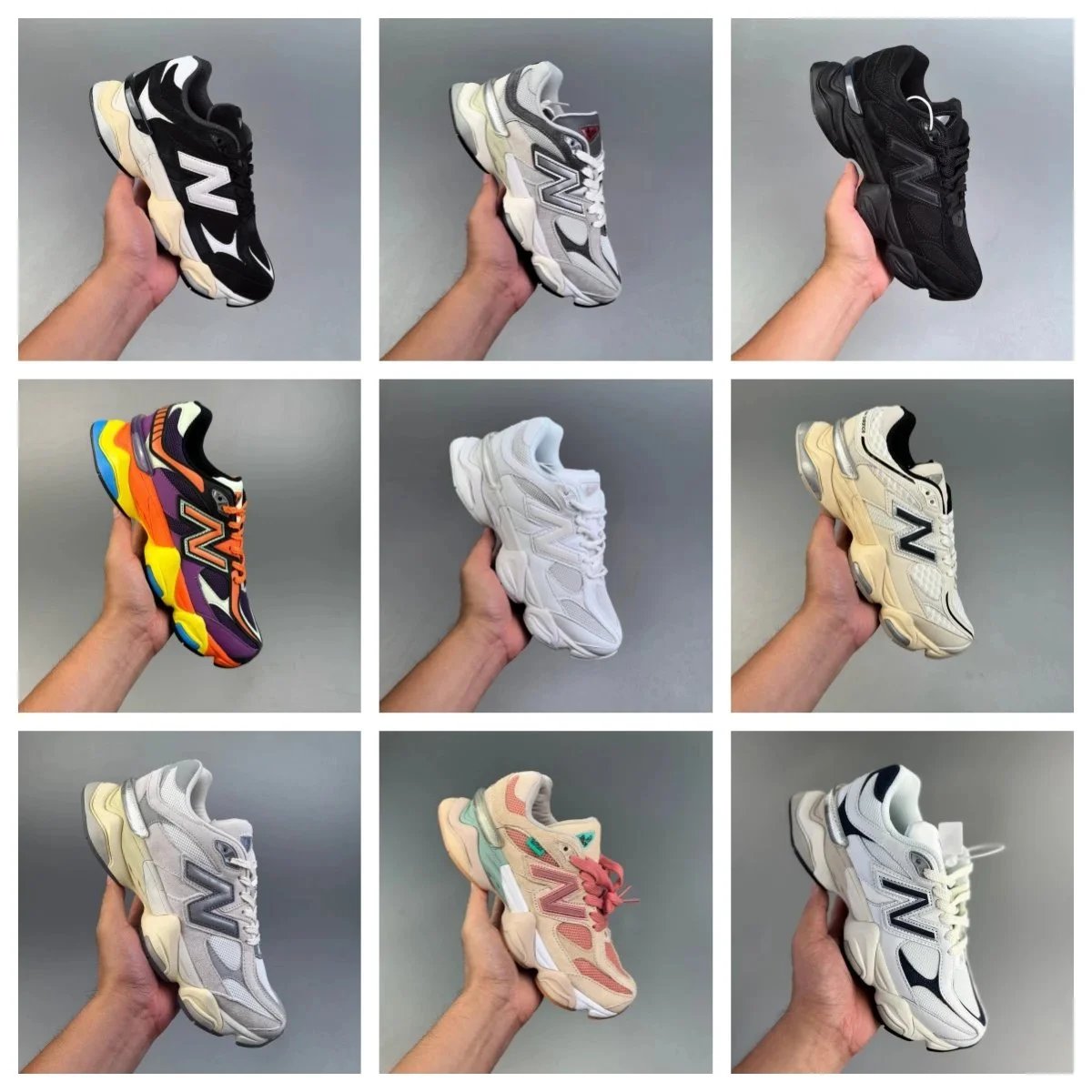
Shoes EEF 6 Unisex Classic Running Shoes | CSSBuy spreadsheet | LoongBuy spreadsheet - 135730