Cafans Journal
Stories & FindsCAFANS Spreadsheet Guide: Master the Shopping Spreadsheet
CAFANS Spreadsheet Guide: Master the Shopping Spreadsheet
The CAFANS spreadsheet is a practical framework for organizing purchases, comparing products, and coordinating agent-based shopping. This guide explains how to build and use a shopping spreadsheet, a product comparison spreadsheet, and an agent shopping spreadsheet — all in one connected system. Whether you are buying locally or through a purchasing agent, a well-designed spreadsheet saves money, reduces mistakes, and turns scattered decisions into a clear plan.
What Is the CAFANS Spreadsheet?
The CAFANS spreadsheet is a structured workbook built around five habits: Collect, Assess, Filter, Act, and Note. Each habit maps to a section of the sheet. You collect candidate items, assess them with data, filter by budget and needs, act through a buying agent or direct checkout, and note the outcome for next time. This method works for any product category, from electronics and clothing to home goods and cosmetics.
Core Components of a Shopping Spreadsheet
A strong shopping spreadsheet has clear columns and consistent formatting. Common fields include: item name, category, brand, size or model, unit price, shipping cost, tax, total cost, seller, rating, return policy, and priority. Add a status column (researching, shortlisted, ordered, received) so every row tells you where the purchase stands. Use data validation for status and category, and apply conditional formatting to highlight items that exceed your budget.
Remember to include currency and exchange rate columns if you buy across borders, and a weight column for shipping estimates. A summary dashboard with SUM and COUNTIF formulas gives you an instant total spend, average price, and item count.
Building a Product Comparison Spreadsheet
The product comparison spreadsheet is where the CAFANS method earns its name. List 3–8 candidates per category, then score each on price, quality signals, warranty, delivery time, and seller reliability. Weighted scoring is the key: assign weights that reflect your priorities, then use SUMPRODUCT to calculate a final score. Normalize review counts and ratings so a product with 20 reviews is not treated the same as one with 2,000.
Keep a specification matrix for technical products — screen size, battery life, material, dimensions — and a fee breakdown for each candidate. Link to the source page in a URL column so you can verify details later. A comparison spreadsheet is only useful if it is updated; set a weekly review to refresh prices and stock status.
The Agent Shopping Spreadsheet
An agent shopping spreadsheet handles purchases through a buying agent or proxy service. Extra columns are needed: agent fee rate, domestic shipping within the source country, international shipping, service charge, insurance, consolidation weight, and estimated customs duty. Track the order number, tracking number, and warehouse status for each item.
Use a separate tab for consolidation planning: group items by warehouse arrival date to reduce shipping cost, and flag fragile or restricted goods. Add a reconciliation section that compares the agent’s quoted total with your calculated total, so discrepancies are caught early. Note the agent’s response time and packaging quality in a feedback column — this becomes valuable data for future orders.
Formulas and Automation
Useful formulas for any shopping spreadsheet include SUMIFS for category totals, AVERAGEIF for price benchmarks, VLOOKUP or XLOOKUP to pull agent fee rates, and IF statements to flag out-of-budget items. Create a dropdown for currency and a named range for your budget ceiling. A simple pivot table can show spend by category or by seller. Keep the workbook clean: one tab for the item list, one for comparison, one for agent orders, one for budget, and one for notes.
Step-by-Step Setup
- Create the workbook and name the tabs.
- Define columns and data validation.
- Add your budget and exchange rates.
- Enter 5–10 candidate items per category.
- Build the weighted comparison scores.
- Add agent fee and shipping columns.
- Set conditional formatting for status and overspend.
- Create a summary dashboard.
- Schedule a weekly update.
- Archive completed orders each month.
Common Mistakes to Avoid
Do not mix currencies without conversion, and never hide fees in free-text notes. Avoid comparing products with missing data — mark blanks clearly. Do not let the spreadsheet grow without archiving; a bloated sheet slows analysis. Finally, keep a backup and a version history, especially when sharing with family or a shopping group.
Related Terms
As you build your sheet, you will encounter these terms: spreadsheet, shopping spreadsheet, product comparison spreadsheet, agent shopping spreadsheet, spreadsheet guide, budget tracker, price tracker, wishlist, shortlist, unit price, shipping cost, customs duty, exchange rate, consolidation, agent fee, service charge, tracking number, order status, data validation, conditional formatting, pivot table, SUMIFS, VLOOKUP, XLOOKUP, weighted score, review count, seller rating, return policy, warranty, and inventory. Using them consistently keeps your workbook readable and your decisions defensible.
Conclusion
The CAFANS spreadsheet turns shopping from a series of impulse clicks into a documented process. Start with a simple shopping spreadsheet, add a product comparison spreadsheet when choices multiply, and extend to an agent shopping spreadsheet when you buy through a purchasing service. Follow this spreadsheet guide, revisit it monthly, and your budget, your data, and your results will stay aligned.
Editor's selection
Popular Products

Ni Vests, T-Shirt and Clothing Sets 1000 | JoyaGoo spreadsheet | Sugargoo spreadsheet - 141084

Outfit Set FL01-005ph Spring and Autumn Casual Clothing | Sugargoo spreadsheet | GTBuy spreadsheet - 136271

Clothing Set 1 | Oopbuy spreadsheet | BBDBuy spreadsheet | CSSBuy spreadsheet - 136873

Outfit Set MX16 Clothing Set | Hipobuy spreadsheet | Fishgoo spreadsheet - 137693

D All-Over Print Clothing Set | UIDBuy spreadsheet | Kakobuy spreadsheet | Hipobuy spreadsheet - 136221
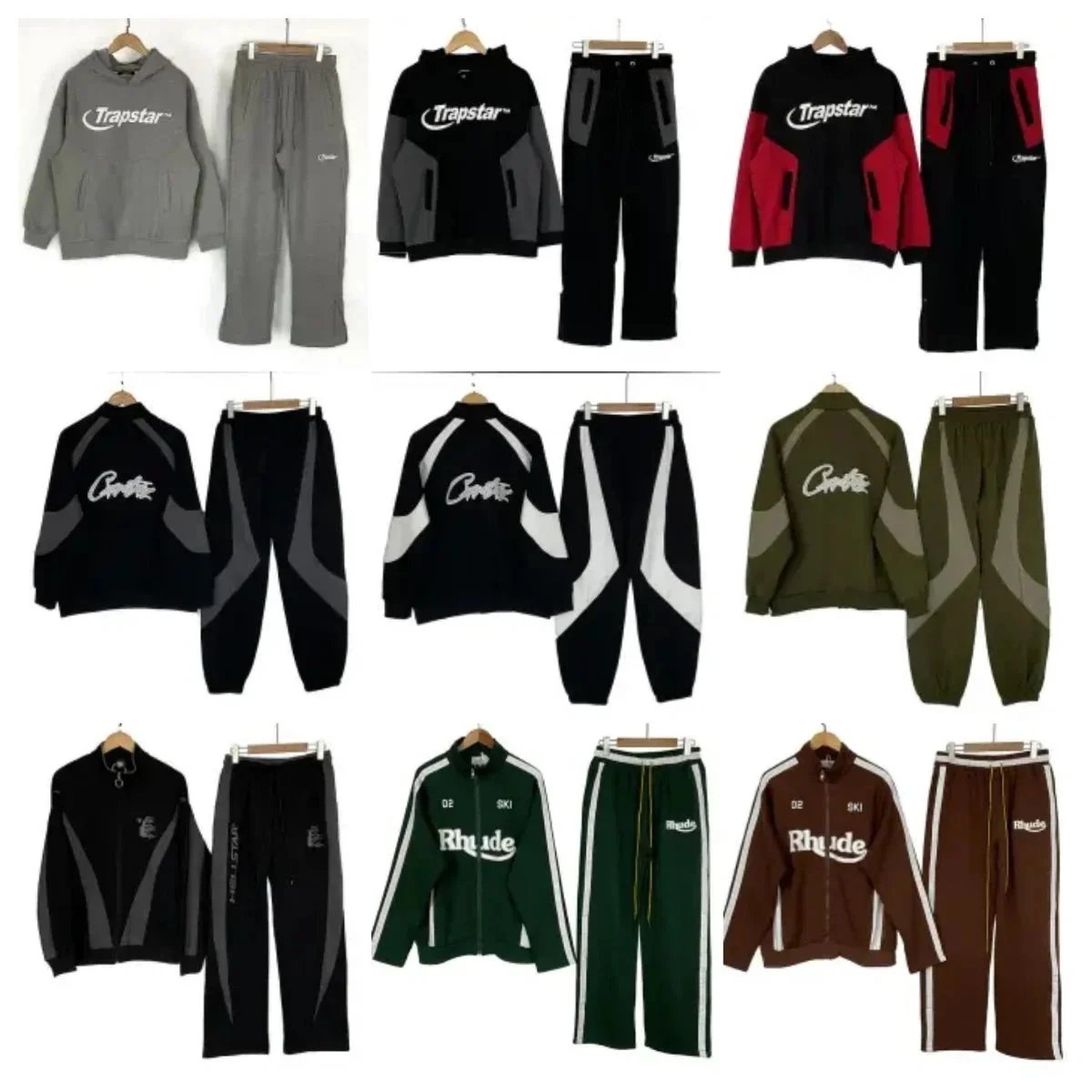
Outfit Set L-001 Casual Hip-Hop Clothing Set | GTBuy spreadsheet | Hubbuycn spreadsheet - 136248

Clothing Set 111 | Wheebuy spreadsheet | BBDBuy spreadsheet - 136980