Cafans Journal
Stories & FindsThe CAFANS Guide to Shopping Spreadsheets: Build, Compare, and Track Like a Pro
If you have ever lost track of what you ordered, overpaid for a product, or forgotten why you chose one item over another, a shopping spreadsheet can fix that in an afternoon. This CAFANS guide walks you through building a product comparison spreadsheet, using an agent shopping spreadsheet, and turning a plain spreadsheet into a reliable personal shopping system. Everything here is practical, beginner-friendly, and free of brand hype.
Why a Spreadsheet Beats a Notes App
A spreadsheet is structured. Every row can hold one product, every column one attribute, and every cell one fact. That structure gives you sorting, filtering, formulas, and charts without extra software. When you shop across many stores, this consistency matters. A spreadsheet guide like this one helps you avoid the common trap of collecting scattered screenshots and half-written lists.
The core idea is simple: capture data once, then reuse it. The same worksheet can support budgeting, price tracking, and decision-making. You do not need advanced skills — just a template, a few headers, and the discipline to update it.
Step 1: Set Up the Basic Spreadsheet
Open a blank workbook and create a tab called Wishlist. Add these column headers: Item, Category, Store, Link, Unit Price, Quantity, Shipping, Total, Priority, Status, Notes.
Freeze the top row so your header row stays visible. Format the price columns as currency. Add data validation to the Status column with options such as Considering, Ordered, Delivered, and Returned. This small step turns a static list into a working tracker.
Use a formula for the Total column: unit price times quantity plus shipping. If you prefer, use a named range for shipping so you can update it once. Keep the layout clean — one idea per column, no merged cells in the data area.
Step 2: Build a Product Comparison Spreadsheet
A product comparison spreadsheet is where real decisions happen. Create a second tab called Compare. List candidate products in rows and attributes in columns: Price, Rating, Warranty, Material, Size, Weight, Return Policy, Delivery Time, Seller Rating.
Enter your options, then add a score column. A simple weighted formula — for example, price 40%, rating 30%, warranty 30% — produces a rank you can sort by. Use conditional formatting to highlight the best value in green and the weakest in red. A pivot table can summarize averages by category if your list grows.
Keep the comparison tab separate from the wishlist. This separation keeps raw data clean and makes filtering easier. Add a dropdown for the product category so entries stay consistent, and use a checklist column for features you must have versus nice-to-have.
Step 3: Use an Agent Shopping Spreadsheet
If you buy through a shopping agent, a agent shopping spreadsheet is essential. Agents often handle multiple orders, currencies, and shipping batches, so tracking becomes complex fast. Add columns for Agent Order ID, Item Link, Declared Value, Service Fee, Domestic Shipping, International Shipping, Weight, and Consolidation Batch.
Create a summary tab with a SUM formula for total spend and a COUNTIF for items still in transit. Record exchange rates in a small reference table and use a lookup formula to convert prices. Keep a log of agent messages and dates so you can resolve disputes. A dashboard chart showing spend by batch gives you a quick visual check.
This setup also works as a general purchase tracker for household goods, hobby supplies, and gifts.
Step 4: Track Budget and Spending
Add a Budget tab with monthly limits per category. Use a running total and a variance column to see how far you are from your target. A bar chart or sparkline makes trends obvious. Set conditional formatting to warn you when a category exceeds 90% of its budget.
Review the summary weekly. Update the status of each item, archive completed rows, and keep a history tab for past purchases. Over time this becomes a useful database of what you bought, where, and at what price.
Step 5: Keep It Clean and Shareable
Good hygiene keeps a spreadsheet useful. Use consistent naming for tabs and columns. Avoid duplicates with a unique ID column. Protect formula cells with sheet protection so accidental edits do not break the calculation. Back up the file to cloud storage and keep a dated copy.
If you share the sheet, add a comment column and use collaboration features sparingly. A print area and clean formatting make reports easy to read. Finally, review your workflow monthly: remove unused columns, simplify formulas, and keep the spreadsheet lean.
Quick Checklist
- One row per product, one column per attribute
- Separate tabs for wishlist, comparison, agent orders, and budget
- Formulas for total cost, score, and variance
- Data validation and conditional formatting for consistency
- Weekly review and regular backups
With this CAFANS approach, your shopping spreadsheet becomes more than a list. It becomes a decision tool that saves money, reduces mistakes, and makes every purchase traceable.
Editor's selection
Popular Products
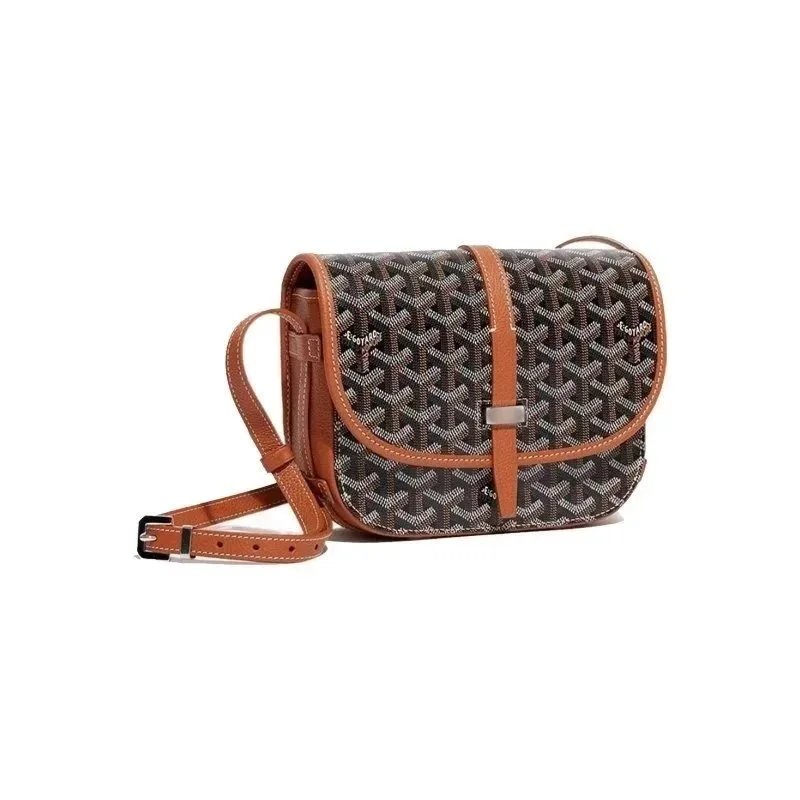
GOY@R Bag - Bag Spreadsheet, Bag Finds - 137144
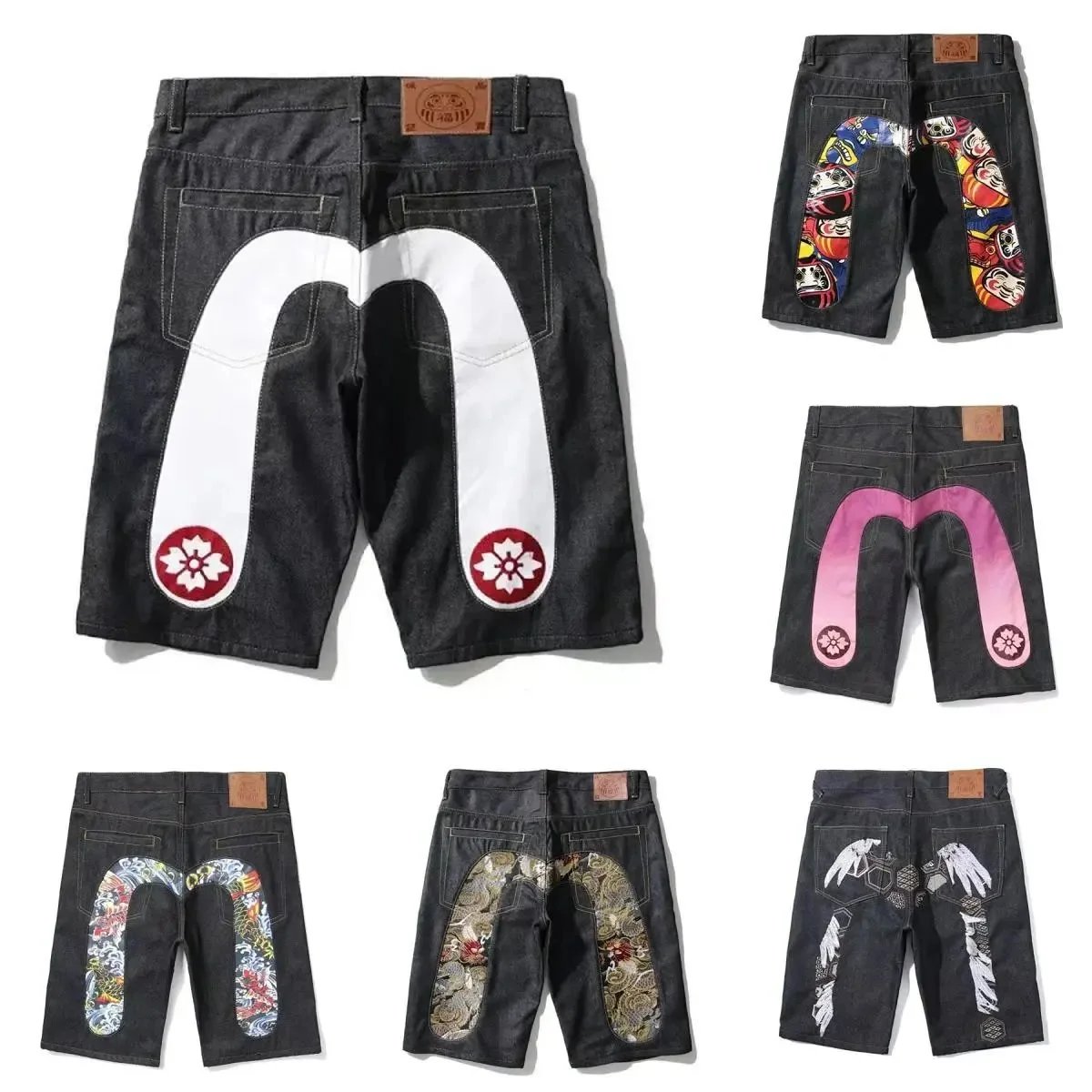
Printed Knee-Length Denim Shorts - Shorts Spreadsheet, Shorts Finds, Apparel Finds - 137994
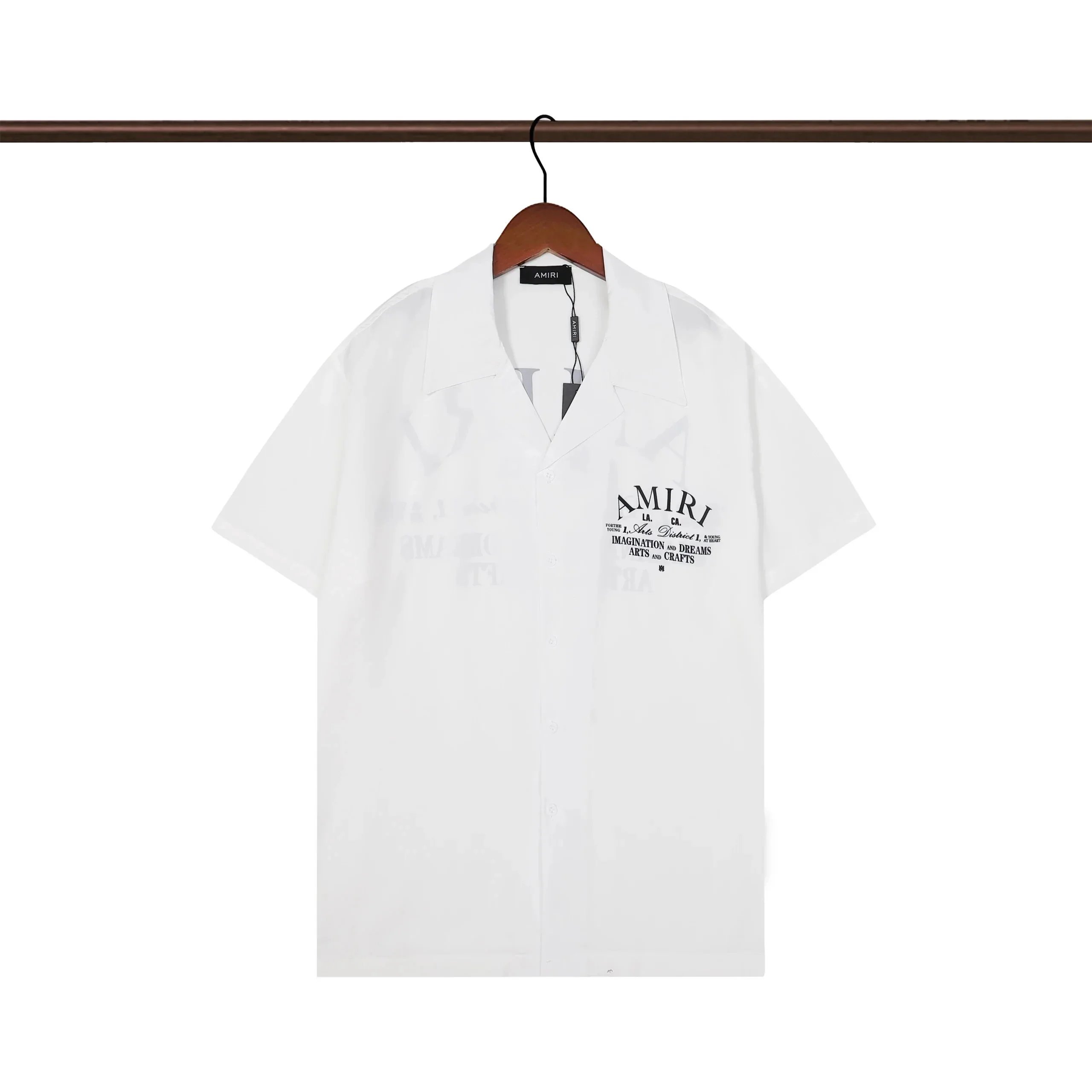
Classic Breathable Shirt 003 - Shirt Spreadsheet, Shirt List - 136890

XXX-LYW Medium Coin Purse 3982 - Wallet Spreadsheet, Wallet Finds, Accessory Finds - 137019
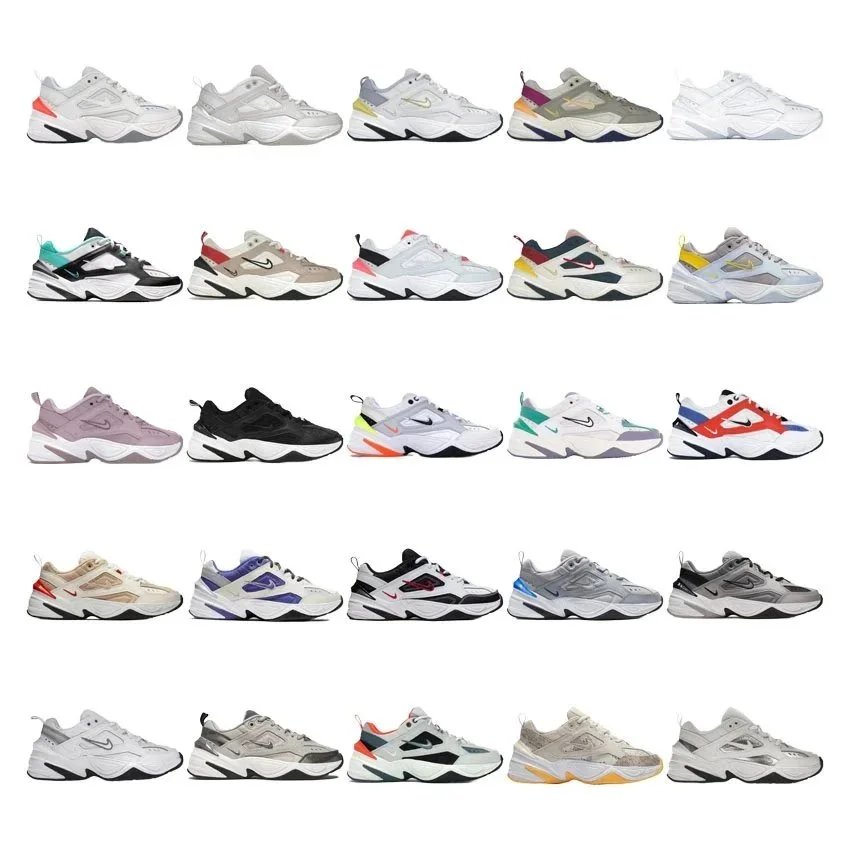
M2K Tekno Casual Sneakers - Sneaker Spreadsheet, Footwear Picks, Sneaker Finds, Footwear Finds, Sneaker List - 137537
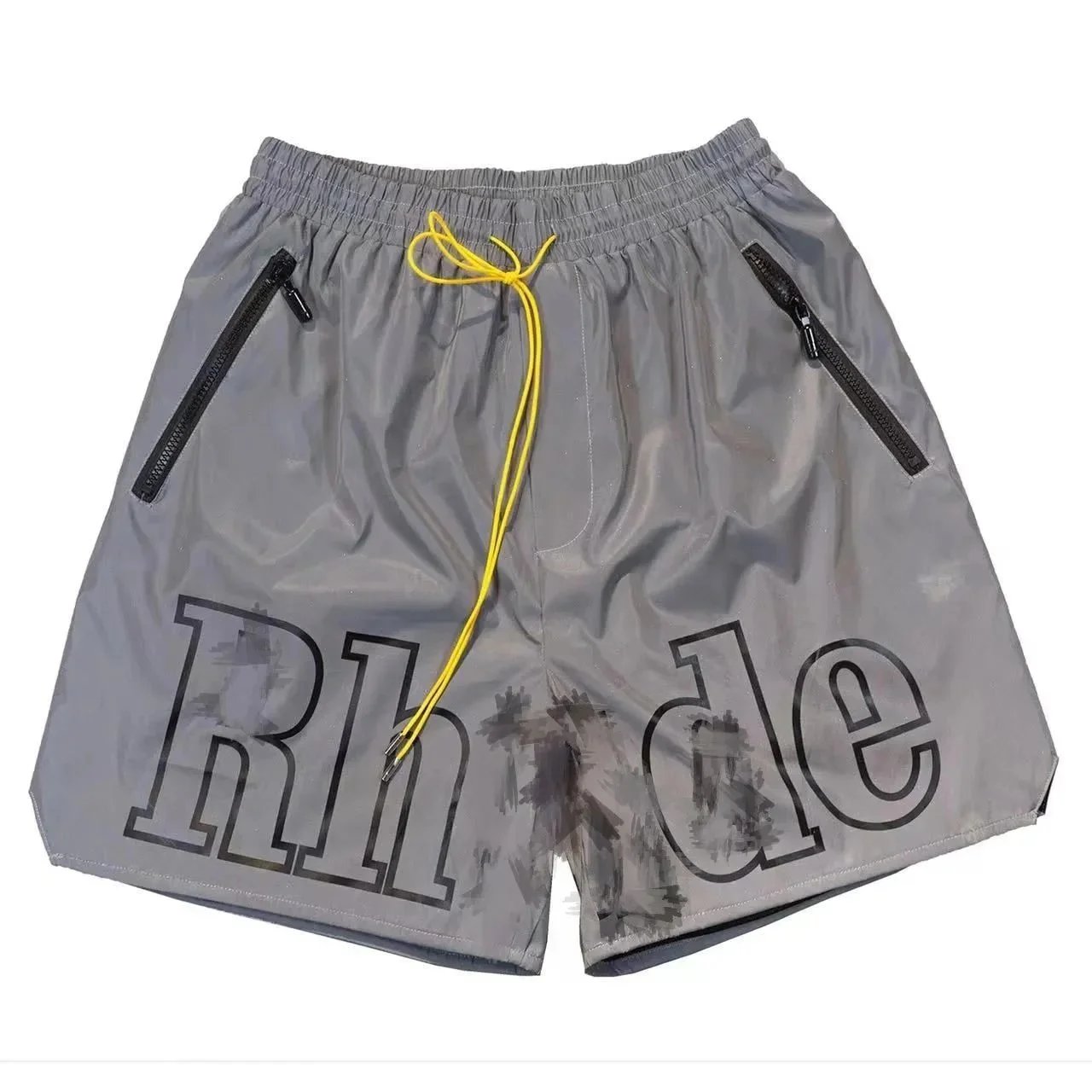
Rhv.de Shorts - Shorts Spreadsheet, Apparel Finds, Clothing Finds - 137188

FL01-005ph Spring and Autumn Casual Clothing Set - Clothing Spreadsheet, Fashion Finds - 136271